Practical answer
PNG to Text: Keep the Background
To extract English text from a PNG, add it to ClearPixel OCR, select Extract text, then check the words before copying or downloading .txt. If a transparent export gives wrong words, try an opaque copy with a contrasting background prepared outside this tool. In our test below, the transparent version produced errors while two opaque versions preserved the wording.
One lettering mask, three PNG backgrounds
On October 9, 2026, we made three synthetic English images and read them in the live browser tool. All measure 1000 by 420 pixels. We drew the same five lines in Arial at 36 pixels, at the same positions, into one lettering mask. We then used that mask for each export. No image was resized, cropped, or converted into JPG. These are test files, not personal documents.
- png-transparent.png: 24,591 bytes; white lettering over transparency, saved as RGBA. The alpha channel carries the lettering mask; the underlying RGB channels are white throughout.
- png-dark.png: 28,993 bytes; white lettering on an opaque black background, saved as RGB.
- png-light.png: 31,586 bytes; black lettering on an opaque white background, saved as RGB.

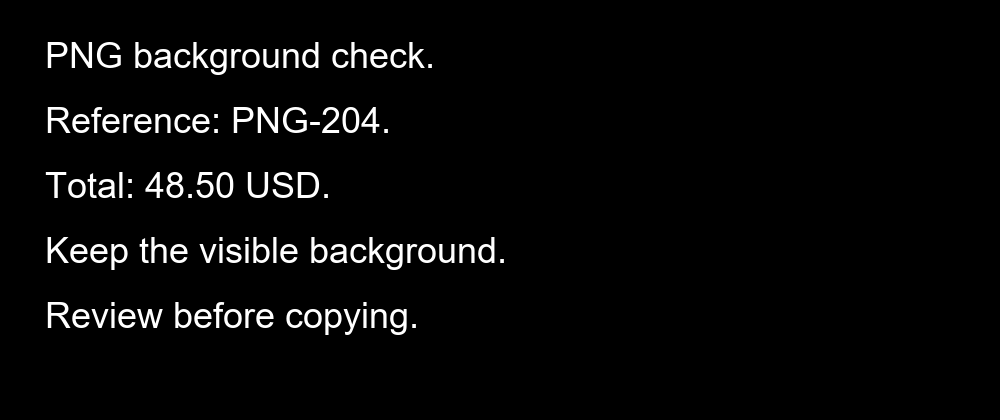
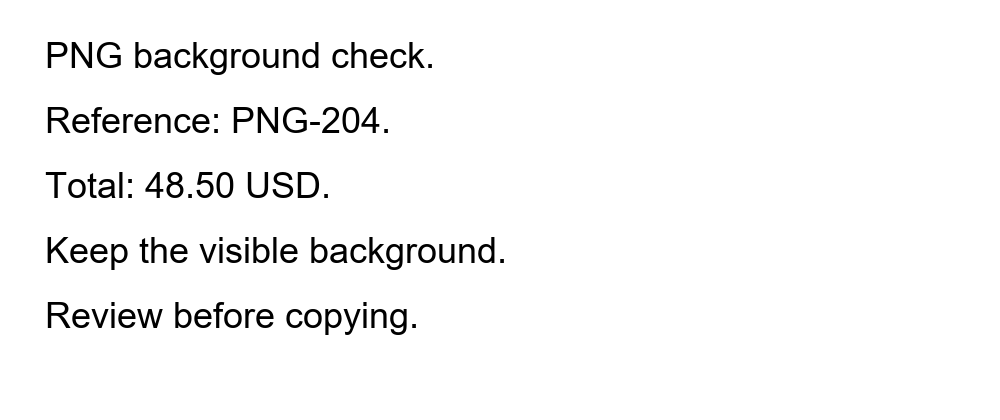
These byte counts are measured fixture sizes, not upload limits. The transparent file may look blank against a white viewer background. That appearance is not evidence that its lettering was removed: download it and view it over a dark background to inspect the white letters.
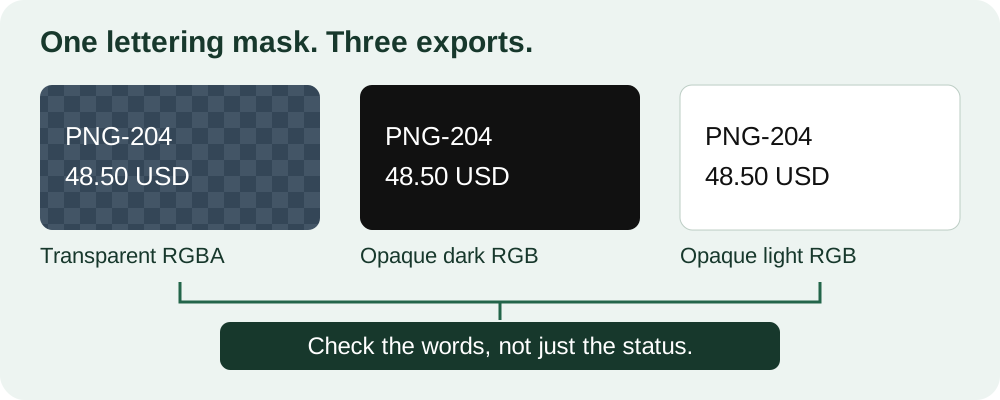
The five source lines were:
PNG background check.
Reference: PNG-204.
Total: 48.50 USD.
Keep the visible background.
Review before copying.
We queued transparent, dark, and light in that order and ran Extract text once. All three entries reached Done. The transparent file's recognized body was exactly:
FING BEckgroune check:
Reierence: PING 204:

ete 48.50 USE,

Keep the visible backgrounol
Review belore copying:
Both opaque files produced this body:
PNG background check.
Reference: PNG-204.

Total: 48.50 USD.

Keep the visible background.
Review before copying.
The transparent result changed words, the reference, punctuation, and the currency label. The number 48.50 survived, which would not make the surrounding field safe to reuse. Both opaque bodies matched the source wording and punctuation, with extra blank lines. The exact combined status was Finished: 413 characters extracted from 3 images. Metadata showed 413 characters · 55 words · 26 lines, including filename headings and spacing. The browser error log was empty.
This is evidence about these files in this run, not proof that all transparent PNGs fail. We changed transparency, background, and color representation together. We did not instrument the engine's decoding stages, so this test cannot establish precisely where the wrong letters arose. It also does not establish that white-on-black is always better than black-on-white: both opaque versions worked here.
Reproduce the check without replacing your work
- Keep a separate test tab. Save any corrected text from your real task first. Download the three fixtures, open a fresh tool tab, and add them in the listed order.
- Inspect each filename section. Run Extract text and compare PNG-204, USD, and the final two sentences against the source. A Done label confirms processing, not correct transcription. Do not score the result from its combined character count.
- Compare a prepared copy of your own PNG. Keep the original unchanged. In a local image editor, place its visible lettering over an opaque contrasting background and export a separate PNG. Preserve dimensions and crop so you are not also testing a resize or a different text region.
- Choose by the recognized body. Test the original and prepared copy under different filenames. Correct important fields by looking at their source image, then use Copy all or Download .txt. If the prepared copy still fails, stop treating transparency as the only possible explanation.
There is no background, inversion, or flattening button in the current ClearPixel tool. The preparation step happens outside it; this article is not advertising a new image-editing feature. Rerunning extraction replaces the editable result, so keep corrections before another comparison. See the save-before-rerun workflow for that behavior.
What other firsthand tests actually show
Four developer reports informed this experiment. They involve other software configurations, inputs, and historical versions. They are individual experiences, not a survey or measurements of ClearPixel.
- In a PNG input-route report, the author obtained an empty result from a PNG memory input but text from a JPEG route. Saving and converting the PNG also produced text. The issue was labeled for alpha-channel handling, but the report alone does not isolate its cause.
- A white-on-black screenshot question included erratic output despite large text. A later answer supplied an inverted-image test with matching output. That does not make resolution or inversion a universal fix.
- In a black-background experiment, the author said added padding changed recognition, then reported that inverted images worked. Background, border, and processing settings need separate controls rather than one blanket format recommendation.
- A variable-background screenshot question described white outlined letters over changing colors. The author reported that a suggested black-and-white conversion did not improve the result. Its follow-up pixel-filter code encountered an error, so that proposal is not treated as a verified fix.
The common lesson is to preserve the input and record the actual change before attributing a result to it. Our downloadable background trio makes that check possible here without copying a source's preprocessing code or claiming its engine settings are available in this interface.
Questions and scope
Do I need to turn PNG into JPG first?
No. The two opaque PNG fixtures were read directly. Changing a filename extension does not create an opaque background or perform image conversion.
Does PNG support mean every transparent export reads correctly?
No such guarantee is made. This run accepted all three PNGs, but the transparent fixture returned incorrect words. Check your actual output rather than relying on the accepted file type.
Can this translate or recognize other languages?
The current tool uses the English OCR model only. It does not offer translation, PDF input, or a language selector.
Recognition runs in your browser; selected images stay on your device, and engine files load from this site. Output is editable text with Copy all and a .txt download, not a reconstructed design. For JPEG export comparisons, see the JPG test pair. For a processed image with no recognized body, see the blank-image control.