Practical answer
OCR Online: Keep Your Corrected Text
To use OCR online, add English JPG, PNG, or WEBP images to ClearPixel OCR, select Extract text, and review the editable result. Before adding more images and running OCR again, save your corrected text with Copy all or Download .txt. A new recognition run rebuilds the result and replaces your edits.
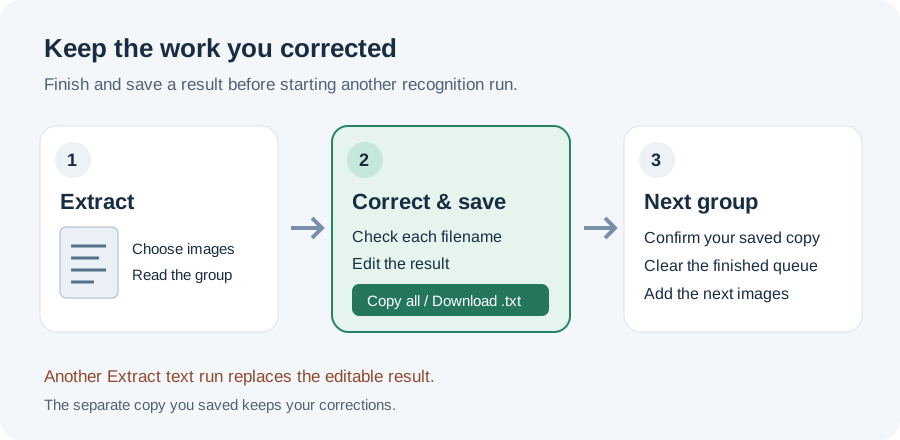
Finish one group before starting another
Treat a group as the images you intend to recognize, review, and save together. This is a way to organize your work, not a claimed file-count limit. ClearPixel keeps its image queue and result in the current page; it offers no saved history to recover a previous result.
- Start with one representative image. Choose an English image with the kind of text you actually need. Run Extract text, then compare its result with the source. A readable paragraph is not enough when the useful part is a reference code or an amount.
- Add the rest before doing the final edits. If you add another image after recognition, the existing queued images return to Ready. The old text remains visible until you start the next run. Ready is a signal to finish building your group before investing more time in corrections.
- Recognize the complete group. Extract text clears the result box and reads the queue again. Adding one new image does not turn the next run into an append-only operation. Previously corrected words will be replaced by fresh OCR output.
- Review by filename, then save. Match each filename heading to its source image. Correct the text in the result box. Use Copy all and paste it into an editor, or Download .txt and open the downloaded file. Confirm that the saved copy contains your corrections.
- Start the next group after the save check. Clear all images & text removes the whole queue and result after confirmation. Only use it once the corrected copy is safe. Then add the images for your next task.
Check this behavior without risking your work
Use a disposable image. After recognition, add the words EDIT CHECK to the result and copy them into another editor. Add a second image: the first file returns to Ready, while your edited text is still visible. Select Extract text. The result is rebuilt from both images, and EDIT CHECK disappears unless those words were in an image. Your separate saved copy should still contain them.
This small check answers a practical question before a longer session: does continuing OCR preserve your manual corrections? In ClearPixel, the point to save is before the next Extract text action, not merely before closing the tab.
Why this routine is useful
First-hand discussions describe different parts of the same problem: waiting for browser OCR, taking on too much at once, and having to correct results manually. They concern other tools and individual experiences, not measured performance claims about ClearPixel.
- A V2EX browser-OCR discussion describes extracting identifiers from test screenshots and a user waiting for a result. Its author distinguishes model loading from image processing. Start with a sample instead of judging a whole group from the first wait.
- In a separate V2EX development thread, the author reports a large document stalling and failing after images were loaded into memory together. That is context for manageable groups, not evidence of a ClearPixel memory limit.
- A Reddit user comparing OCR results reports ordinary words being misread without a useful uncertainty warning. Keep the source available while editing; finished output still needs review.
- A Reddit user testing browser document OCR asks for a smaller page selection after a long run and for editable corrections. The lesson here is to complete and save a useful group before expanding the task.
What this online OCR tool supports
ClearPixel currently reads English text from JPG, PNG, and WEBP files in your browser. You can choose files, drop them onto the page, or paste a supported clipboard image. The result is editable text with filename headings; you can copy it or download a .txt file. Recognition uses engine files served by this site and does not upload the selected images to an OCR server.
This page does not support PDF input, translation, or a multilingual recognition model. It does not reproduce the original page layout or promise an accuracy score. For an accepted file that produces an unexpected result, see the file-and-recognition check.
Questions
Can I use this as a free online OCR tool?
Yes. The current tool requires no account or payment to extract English image text. No unlimited-capacity or processing-speed promise is made.
Will adding a new image preserve my edits?
Adding the image leaves the old result visible, but the next Extract text action replaces it. Save your corrected copy before running OCR again.
Can I recover text after refreshing the page?
Do not rely on that. The tool has no saved history. Copy your corrected text into another editor or download it before leaving or refreshing the page.