Practical answer
JPG to Text: Test the Copy You Actually Have
To turn a JPG into editable English text, add the image to ClearPixel OCR, select Extract text, and compare the result with the source before using Copy all or Download .txt. Recognition runs in your browser. A smaller JPG is not automatically unreadable: our paired test below produced the same wording from two differently compressed files.
Same canvas, different JPEG exports
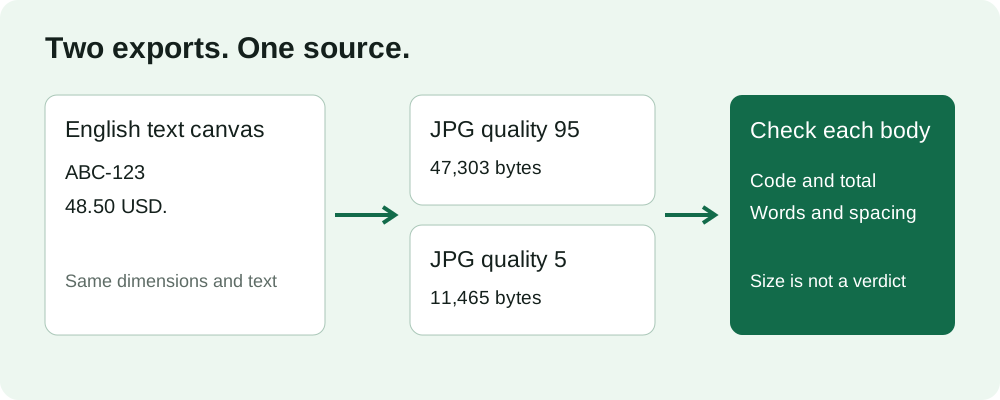
On October 8, 2026, we tested two generated JPGs in the live tool. Each starts from the same white RGB canvas, measuring 1000 by 420 pixels, with black Arial text drawn at 36 pixels. The text positions, background, and dimensions did not change. We saved each file directly from that canvas with Pillow, using JPEG quality settings of 95 and 5 and the same subsampling setting. Neither file was made by resizing or recompressing the other.
jpg-check-q95.jpg is 47,303 bytes. jpg-check-q5.jpg is 11,465 bytes. These are measured file sizes, not upload limits. The quality settings are encoder inputs, not percentages of OCR accuracy. The downloadable pair contains no personal document data.
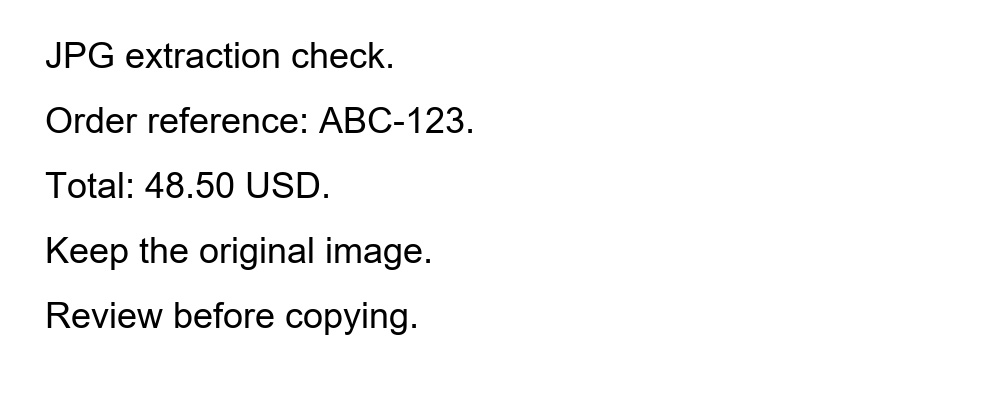
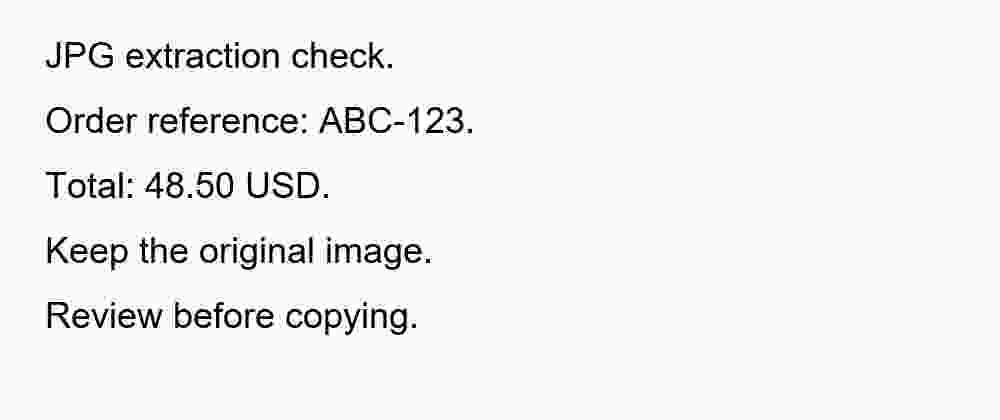
Both source images contain exactly these five lines:
JPG extraction check.
Order reference: ABC-123.
Total: 48.50 USD.
Keep the original image.
Review before copying.
We added the quality-95 file first and the quality-5 file second, then ran Extract text once. Both queue entries reached Done. Beneath each filename heading, the result was:
JPG extraction check.
Order reference: ABC-123.
Total: 48.50 USD.

Keep the original image.
Review before copying.
The code, decimal point, wording, and punctuation matched in both sections. The engine inserted the same blank line after the total in each. The exact status was Finished: 281 characters extracted from 2 images. The metadata was 281 characters · 38 words · 15 lines. Those combined counts include both filename headings and spacing; they are not an accuracy score. The browser error log was empty during this run.
The smaller export did not produce a wording error in this particular test. We therefore cannot present these fixtures as proof that compression always breaks OCR, or that a large JPG always works better. Large, upright black letters on white are a narrow case. A phone photo, colored label, small receipt, or repeatedly shared image is a different input. This experiment changes encoding settings while holding the underlying canvas fixed; it does not test every factor involved in a real photo.
Repeat the pair, then inspect your own JPG
- Use a fresh tool tab. Download both fixtures and add them in filename order. Keep any real task in a separate tab so this check cannot replace text you are still editing.
- Run the same queue. Select Extract text and locate each filename section. Check ABC-123 and 48.50 USD separately, then the surrounding sentences. Do not treat the combined character count as evidence that those fields are correct.
- Compare the body, not the headings. Different filenames make the overall sections different even when the recognized words match. Blank lines also affect the displayed count. Compare the actual source sentences rather than expecting two identical metadata totals.
- Test the file you intend to use. Add your own English JPG in another fresh tab and check its important fields against that exact image. A passing synthetic control shows the tool can read that control, not that your document has been validated.
If you have an original and a shared copy, keep their names distinct and compare both. Record whether dimensions, crop, and visible lettering also changed. Otherwise an observed difference cannot be attributed to JPEG compression alone. Save corrected text before another extraction run: this tool replaces the result when it reruns the queue. For that behavior, see the save-before-rerun guide.
Why the comparison needs controls
Four first-hand developer reports informed the check. They concern other configurations and historical versions, not ClearPixel performance or a claim about how often failures occur.
- A text-cleaning experiment showed unwanted artifacts in JPEG output; an answer demonstrated PNG output from the same processing command. Processing output and the original input are different stages.
- A short-letter experiment combined thresholding with a PNG export. The author initially failed to reproduce the result, then reported success with another engine version. That was not a format-only comparison.
- A download-route comparison reported different OCR results for images obtained manually and through an API. An answer identified different image dimensions. The same depicted content did not mean identical files.
- A PNG/JPG issue report supplied different recognized strings for a colored-text input using a Chinese model. It illustrates the need to record the input and configuration; it does not establish English-model behavior here.
Together, these accounts are a reason to keep dimensions, processing steps, and model settings visible when comparing outputs. ClearPixel does not expose JPEG quality, thresholding, or model-version controls. Prepare comparisons outside the tool, then inspect their recognized text inside it.
Questions and scope
Must I change a JPG into PNG first?
No. Both JPG fixtures were accepted and read directly in this test. Renaming an extension is not image conversion, and changing formats cannot be assumed to recover detail already lost in an earlier export.
Can I get a Word document or preserve a table?
This tool provides editable text, Copy all, and a .txt download. It does not reconstruct a Word document or table layout.
Can I use a non-English JPG?
The current tool runs the English OCR model only. This article does not promise other-language recognition, translation, or PDF input.
Selected images stay on your device during OCR; engine files load from this site. JPG, PNG, and WEBP are accepted. For an image that never reaches Ready, use the file-acceptance guide. For an empty recognized body after Done, use the blank-image control.