Practical answer
Convert an Image to Text
To convert an image to editable English text, choose a JPG, PNG, or WEBP image in ClearPixel OCR, wait until it appears in the image queue, then select Extract text. Check the queue and result separately: a file marked Ready was accepted, but it has not been read yet.
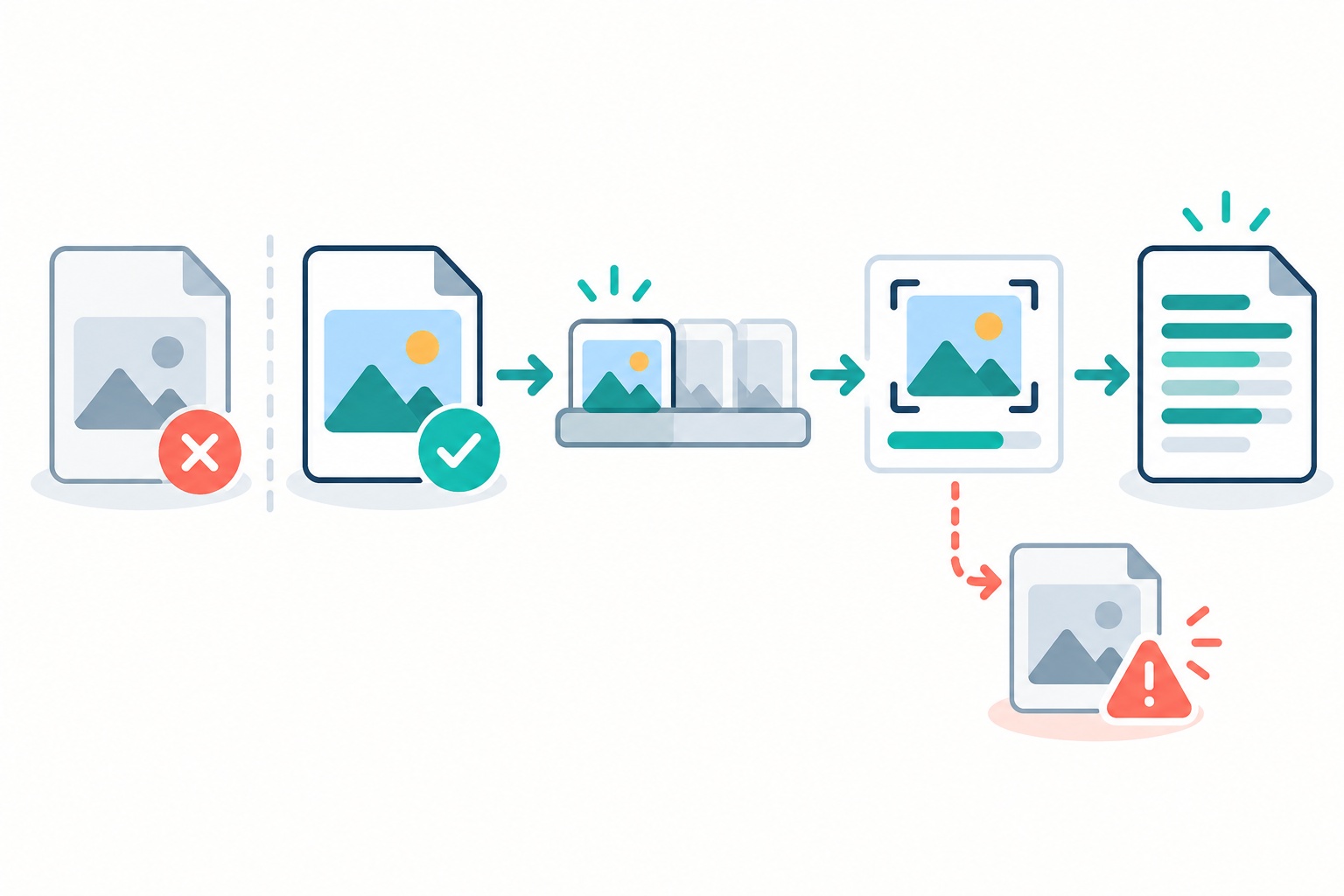
Use the queue as a two-stage check
When an image does not produce text, first find the stage where the workflow stopped. ClearPixel accepts JPG, PNG, and WEBP image files. Its status and queue distinguish file acceptance from recognition, so you do not have to guess from the upload button alone.
- Check file acceptance. After choosing a supported image, look for its filename in the queue and the Ready state. If the status says “Choose JPG, PNG, or WEBP image files,” the file was not added. Export or convert the original to one of those formats; changing only its filename does not change the image format.
- Start recognition. Select Extract text. The queue changes to Reading while the browser processes the image. “Ready” means waiting in the queue, not that OCR has finished.
- Check the per-image result. After recognition, match the filename heading in the result box to the queued file. “Could not read” and “[No text extracted]” indicate a read failure; compare the source image before retrying.
- Separate engine startup from a file result. If the status says “Recognition could not start. Check your connection and try again,” the OCR engine did not start. That is different from one image being processed and marked “Could not read.”
Why a screenshot and a camera photo may behave differently
Two images that look similar on screen can be saved in different formats. In one V2EX discussion, users compare iPhone screenshots saved as PNG with camera photos saved as HEIC; a separate thread describes friction when web apps reject HEIC photos. Those reports are examples, not a claim that every phone or website behaves the same way. For this tool, check the actual file against the supported list instead of assuming from its appearance.
- V2EX discussion: why iPhone screenshots may be PNG while photos are HEIC.
- V2EX discussion: HEIC compatibility friction when uploading through web apps.
- V2EX discussion: sharing HEIC photos with Windows devices.
What the text result is—and is not
ClearPixel runs English OCR in your browser and places the extracted text in an editable result box. Review names, dates, amounts, and other exact details against the source image before copying or downloading. The output is text, not a reconstructed copy of the image's layout.
Questions
Which image formats can I use?
Choose JPG, PNG, or WEBP. The page does not list HEIC, GIF, PDF, or BMP as supported inputs.
Does “Ready” mean the image has been converted?
No. “Ready” means it is in the queue. Select Extract text and wait for the recognition step to finish.
Why is my file accepted but the result has no text?
File acceptance only confirms it entered the queue. Check the per-image status and compare its result section with the source before trying again.
For an image-specific no-text retry, see the picture to text retry guide.