Practical answer
Picture to Text: Retry One Image Without Losing Your Text
If one picture in a batch returns no text, first use Copy all or Download .txt to save the combined result. Find the failed image by its filename, then use Clear all images & text, confirm that it will remove the whole queue and current text, and add only that picture again. This avoids accidentally rerunning every image or losing text you have not saved.
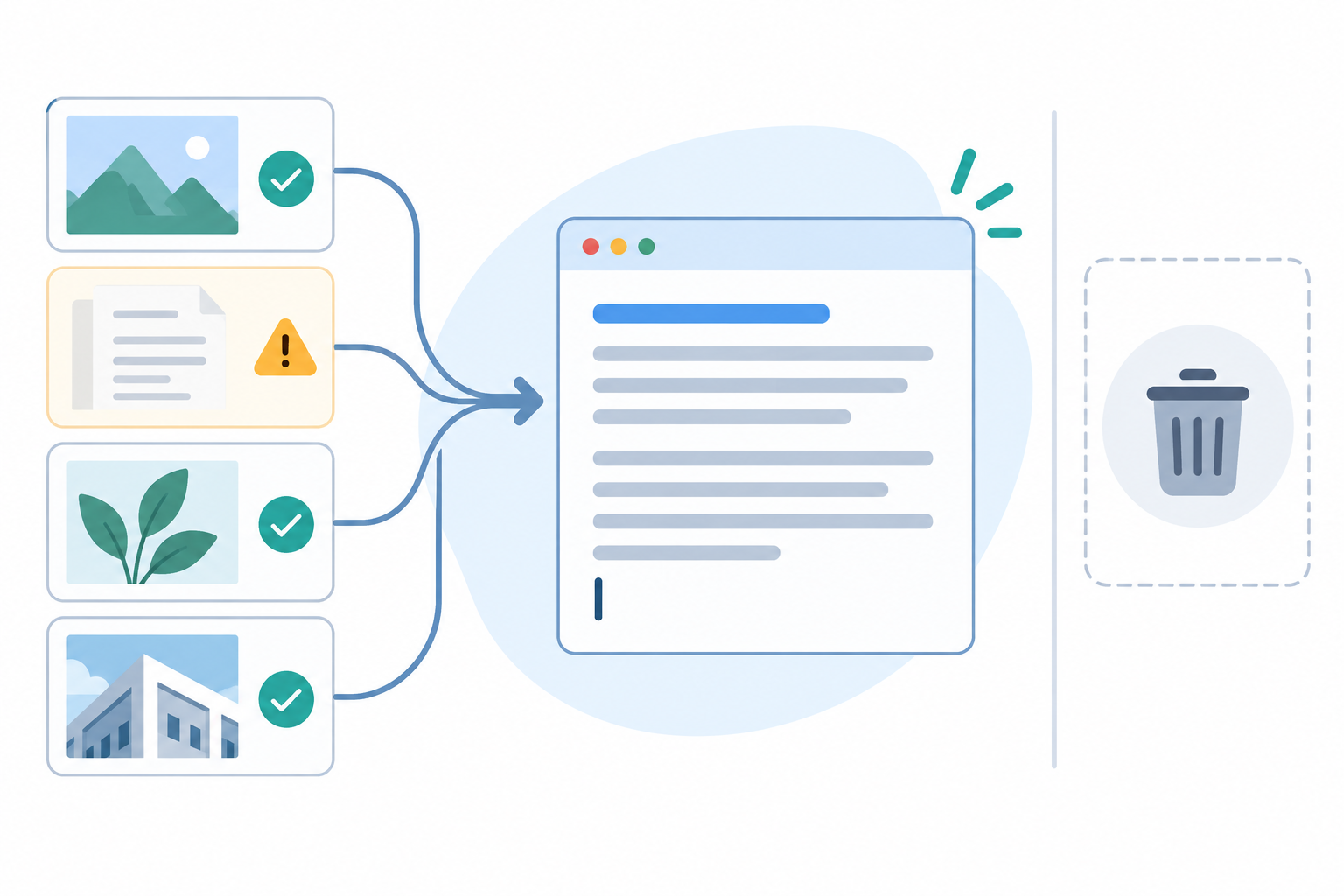
Find the image that needs another pass
After extraction, review the queue by filename and status. A file marked “Could not read” is an OCR failure; a “Done” status only means the image was processed, so check its filename section in the editable result too. If its section says “[No text extracted],” keep that filename as your retry target.
- Save what worked. Select Copy all or Download .txt before changing the queue. The next extraction replaces the current result, so keep this copy if you need the text from successful images.
- Identify one source. Match the empty or failed result to the filename shown in the queue. Do not assume the first item is the one that failed.
- Reset the whole queue deliberately. Choose “Clear all images & text” only when you intend to remove every queued image and the current result. The confirmation says the action cannot be undone.
- Add just the target image. Choose, drag, or paste that JPG, PNG, or WEBP image, then select Extract text. The new result now belongs to that one source.
- Check the source before replacing your saved copy. Compare a few visible words in the image with the editable output, especially names, codes, and numbers.
Why “Clear all” is not a one-file retry
The Clear all images & text action empties both the image queue and the current extracted text. It does not remove only the selected row. Use it only after saving any result you want to keep. Adding another image to an already processed queue also makes the queued items eligible for another extraction, and that run replaces the output; saving first prevents successful text from being lost.
What the browser tool supports
ClearPixel OCR accepts JPG, PNG, and WEBP images by file selection, drag and drop, or Ctrl+V image paste. It recognizes English text in the browser and lets you edit, copy, or download the combined text. It does not accept PDF files or promise that every image will produce text. Images stay in the browser while the local OCR engine processes them.
Questions
Does Clear all remove only the failed picture?
No. It clears every queued image and the current extracted text after confirmation. Save the text first, then add only the picture you want to retry.
Will the next OCR run keep text from the previous run?
No. A new extraction replaces the editable result. Copy or download the text you want to keep before starting another run.
Can I retry a picture by pasting it?
Yes. Copy the image, clear the existing queue if you want to run only that image, then press Ctrl+V on the tool page.
For a review workflow across several images, see the picture to text converter guide.