Practical answer
Turn an Image into Text
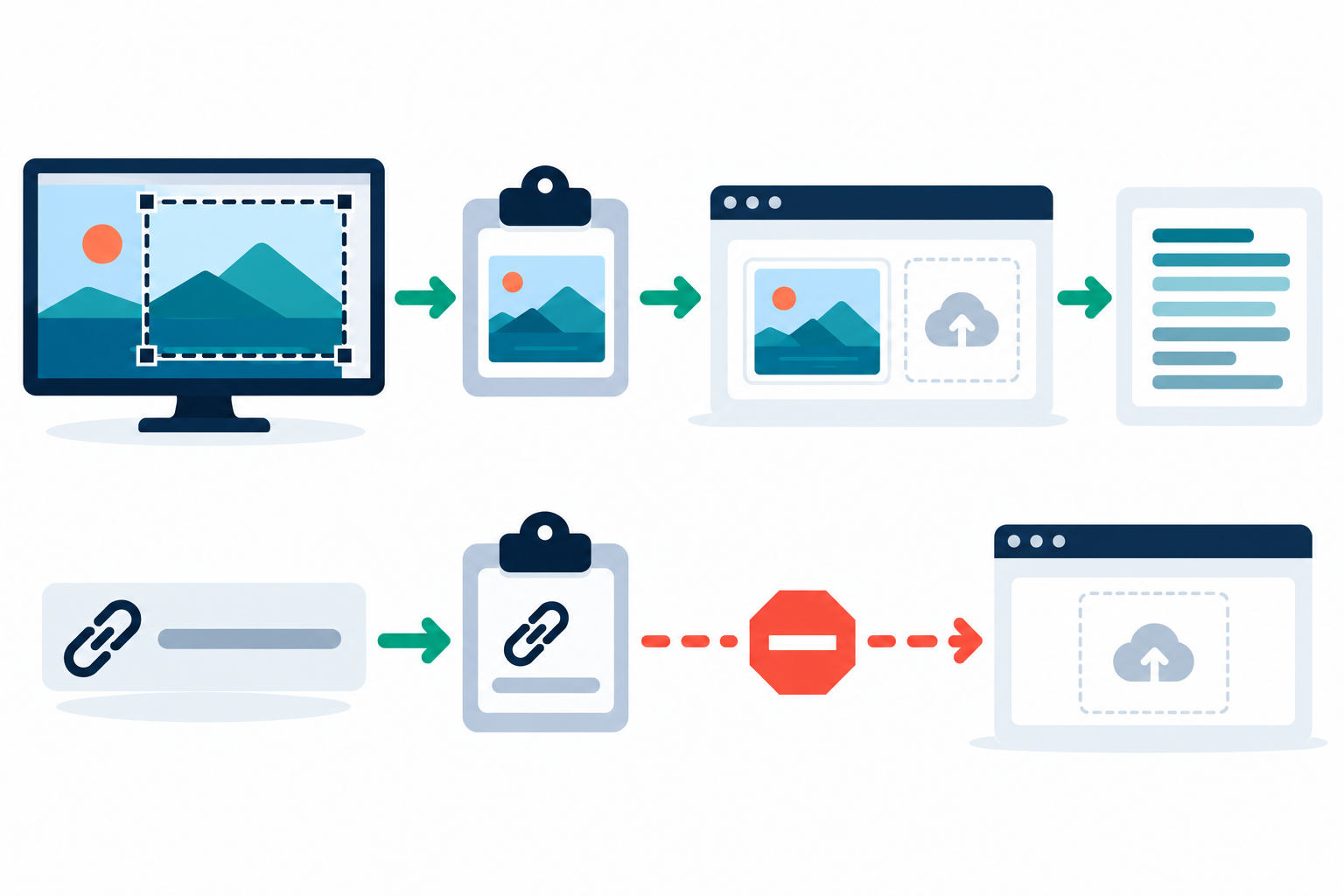
To turn an image into editable English text, add the actual JPG, PNG, or WEBP image to ClearPixel OCR, select Extract text, review the result, and copy or download it. You can also copy image data—such as a screenshot—and press Ctrl+V on the tool page. Copying an image address or ordinary text is not the same as copying the image.
Check what is on the clipboard
When Ctrl+V appears to do nothing, check the clipboard payload before retrying the OCR. ClearPixel's paste handler accepts clipboard items whose type is an image. A URL copied from an address bar, a selected caption, or the words around a picture are text items, so they do not add an image to the queue.
- Copy the image itself. For a screenshot, finish the capture and use the screenshot tool's copy action. For a web image, use the browser's copy-image action if available; do not choose “Copy image address.”
- Return to the OCR page. Press Ctrl+V. A pasted-image item should appear in the queue with a generated filename.
- Check the queue before extracting. If the image count and queue do not change, copy the image again or save it as a JPG, PNG, or WEBP file and use the upload control.
- Run and review OCR. Select Extract text, compare important words with the image, then edit, copy, or download the result.
Why a screenshot can be copied but still fail to paste
Copying a screenshot and pasting it into an app are separate steps. A screenshot can be saved without its pixels being placed on the clipboard, or the clipboard can hold a file path or text instead of image data. User reports about screenshot paste problems describe these as distinct situations, so first confirm that the screenshot tool actually copied the image. These individual reports are troubleshooting examples, not evidence of how often the problem occurs.
- A ShareX user report discusses a capture that was not copied to the clipboard.
- A Pop!_OS discussion distinguishes an image in clipboard history from one that pastes with Ctrl+V.
- A Windows Help report describes trouble pasting a Snipping Tool capture.
What this image-to-text workflow accepts
This guide's Ctrl+V steps refer to image data placed on the clipboard, not an image URL. The tool accepts JPG, PNG, and WEBP files, recognizes English text in the browser, and returns editable text. It does not promise perfect recognition or preserve the image's original layout. Check names, dates, codes, and amounts against the source before using them.
Questions
Can I turn a screenshot into text with Ctrl+V?
Yes. Copy the screenshot image, return to the tool page, press Ctrl+V, and confirm that it appears in the queue before selecting Extract text.
Can I paste an image URL instead?
No. A copied URL is text, not image data. Save or copy the image itself, or use the upload control with a supported image file.
Why did Ctrl+V paste words instead of an image?
The clipboard may contain selected text or a link. Copy the image itself, then paste again and check that an image appears in the queue.
For copying and checking the finished OCR output, see the copy text from image guide.