Practical answer
Screenshot to Text: Keep the Error, Not the Menus
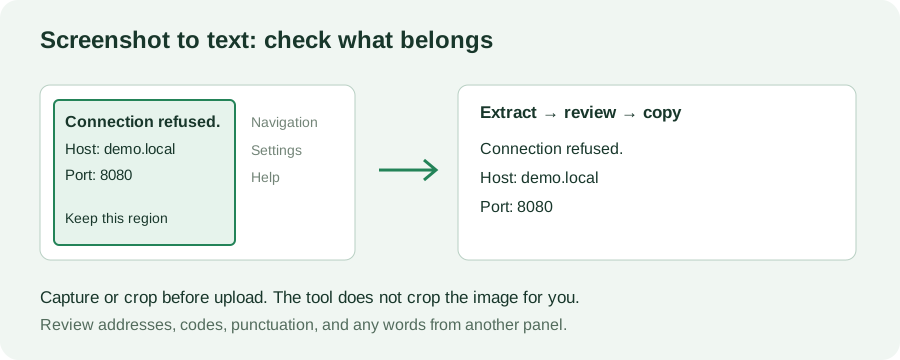
To convert a screenshot to text, save or copy the image, add it to ClearPixel OCR, and select Extract text. Review the English text, then use Copy all or Download .txt. If you need an error message from a window with several panels, capture just that message first: unrelated text can end up on the same output line.
Open the screenshot-to-text tool →
A full-window test: readable words, mixed lines
We made a synthetic window with connection details on the left and navigation text on the right. A second PNG contains the same left-panel text without the right panel. The letters are not enlarged or sharpened. Both files were processed together by the live English tool on October 3, 2026.
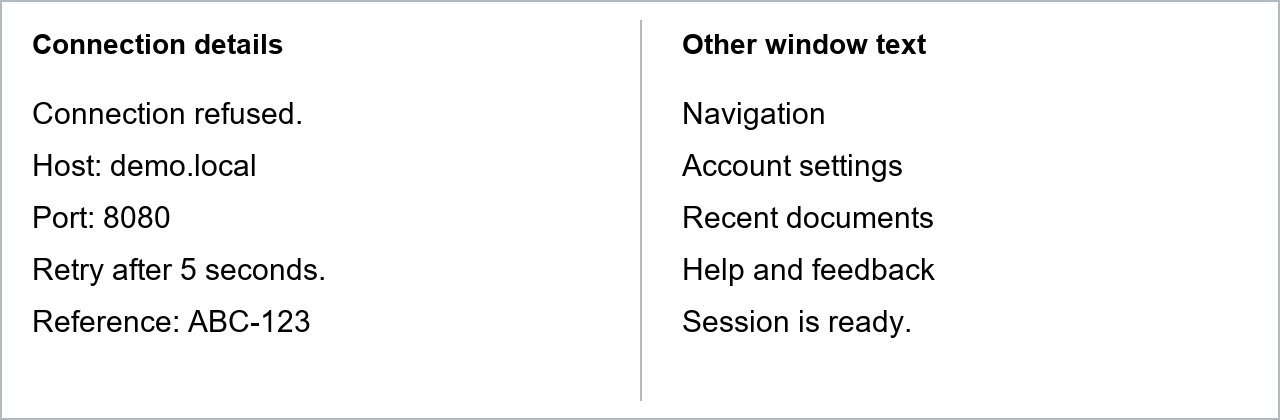
The full-window output included these lines:
Connection refused. Navigation
Host: demo.local Account settings
Port: 8080 Recent documents
The words were recognizable, but their grouping was wrong for an error report. “Navigation” was not part of the failure. “Account settings” was not part of the host address. Copying a plausible sentence without checking its boundary would have sent extra information to the person troubleshooting it.
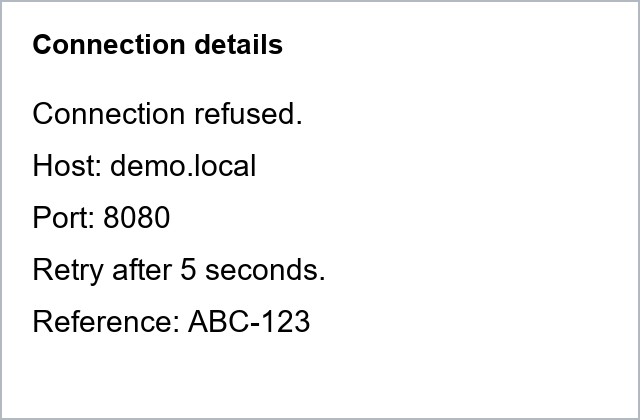
The region-only output contained:
Connection details
Connection refused.
Host: demo.local
Port: 8080
Retry after 5 seconds.
Reference: ABC-123
The target lines remained, while the navigation words disappeared. An extra blank line remained too: this is editable text, not a layout-preserving export. The result demonstrates scope control on this example, not an accuracy percentage, a speed comparison, or a guarantee for other screenshots.
Use a boundary check before sharing the message
- Name the task before capturing. For a support request, identify the error sentence and any host, port, or reference that belongs to it. A whole desktop may contain more readable text than your task needs.
- Keep necessary context together. Capture the error panel, not just the largest word in it. Leave enough room for complete lines and their labels. Exclude a separate navigation panel, but do not cut off the end of an address or reference.
- Check the saved image itself. Open the capture and confirm that the complete message is visible. ClearPixel reads the supplied pixels; it cannot restore a line that was outside the capture.
- Compare under the correct filename. You can add the full screenshot and region image together. Read their separate filename sections in the result. Check whether menu words have been attached to the message, rather than judging only whether letters look correct.
- Prepare the text you actually intend to send. Copy all includes both filename sections when both images were processed. Edit the result down to the message you need, check addresses and punctuation against the source, then copy it. Preserve the original screenshot separately if context is needed.
To repeat our check, download both example PNGs, add them to the tool, and extract them together. Look for “Navigation” beside “Connection refused.” in the full-window section and its absence from the region section. Different browser or engine conditions may change the output; use your observed text, not our example, when judging your own capture.
What people have run into
These first-hand reports describe other software. They are context for the boundary check, not ClearPixel performance measurements or evidence of a trend.
- A billing-work user needed one column rather than a whole document. After being directed to a region screenshot action, they confirmed that the workflow worked again.
- An infographic user reported graphic shapes becoming punctuation and separate columns being read across the page. They wanted recognition limited to a selected area.
- A code-screenshot user found ordinary English recognition more reliable than brackets and semicolons, and reported imperfect results after trying alternatives. A readable error description does not establish that copied code is correct.
- A screenshot-workflow user had file-based OCR working while a selected-area shortcut passed no useful text. This is why checking the saved image comes before diagnosing its OCR output.
Supported input and output
ClearPixel accepts JPG, PNG, and WEBP images and runs its English OCR model in your browser. Choose files, drop them onto the page, or paste copied image data with Ctrl+V. Engine files come from this site; selected images are not uploaded to an OCR server. The result can be edited, copied, or downloaded as a .txt file, with no account required.
There is no screen-capture button, crop editor, PDF input, translation, or multilingual model in this tool. Make your region capture or crop in your own screenshot or image app before adding it. We do not promise correct code, table structure, or original indentation.
Questions
Can I paste a screenshot instead of saving it?
Yes, if the clipboard contains the image itself. If no image appears in the queue, use the clipboard-image check or upload a saved supported file.
Does cropping guarantee better recognition?
No. In this test, removing another panel removed its unwanted text. Cropping does not recover blurred, hidden, or cut-off letters.
Can I copy code from a screenshot?
You can extract visible English text, but this is not a code-specific OCR model. Check punctuation and indentation manually, and do not execute OCR output without reviewing it.
Before a second recognition run, save any corrections you want to keep.